Terminal Device Configuration
Overview
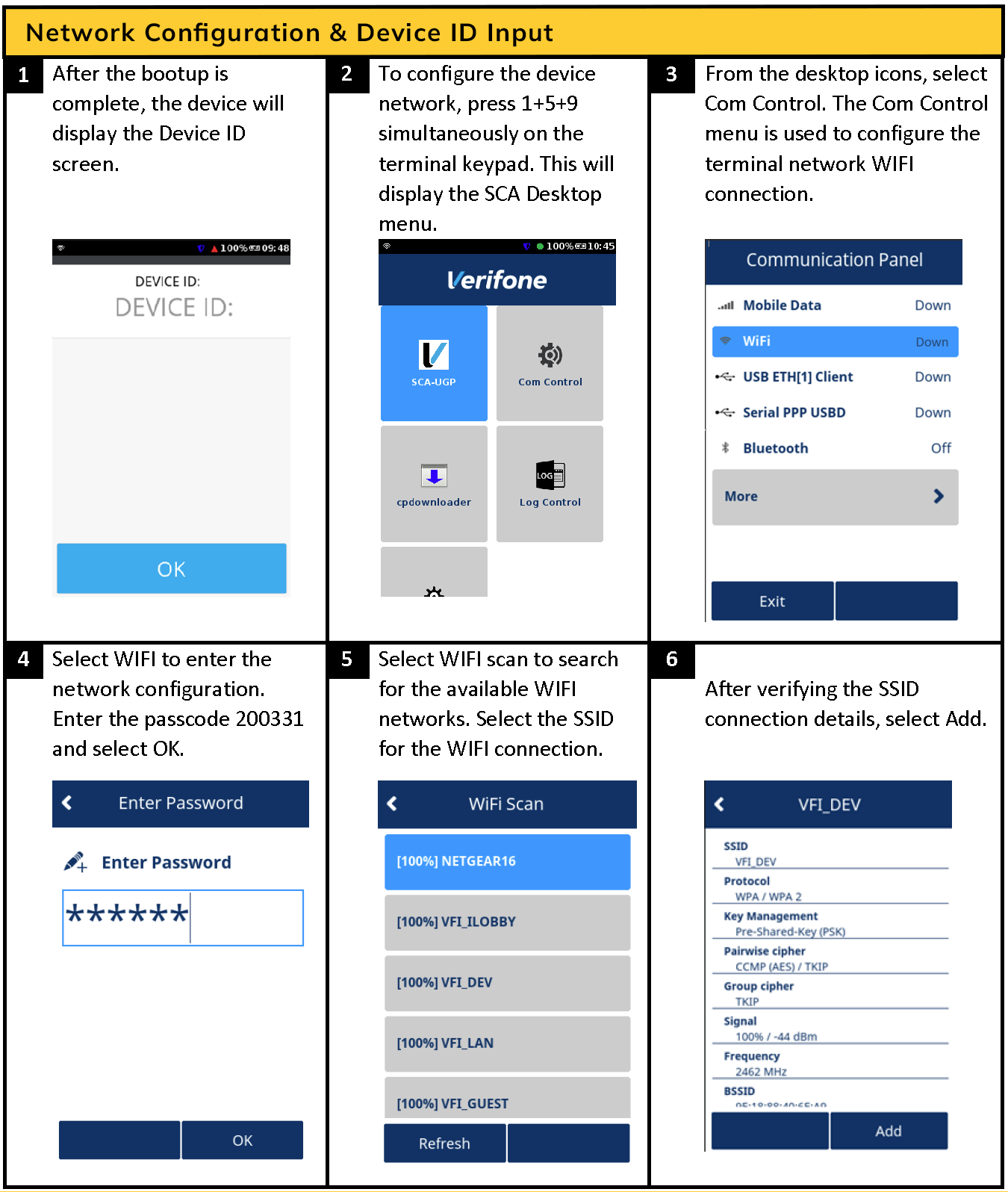
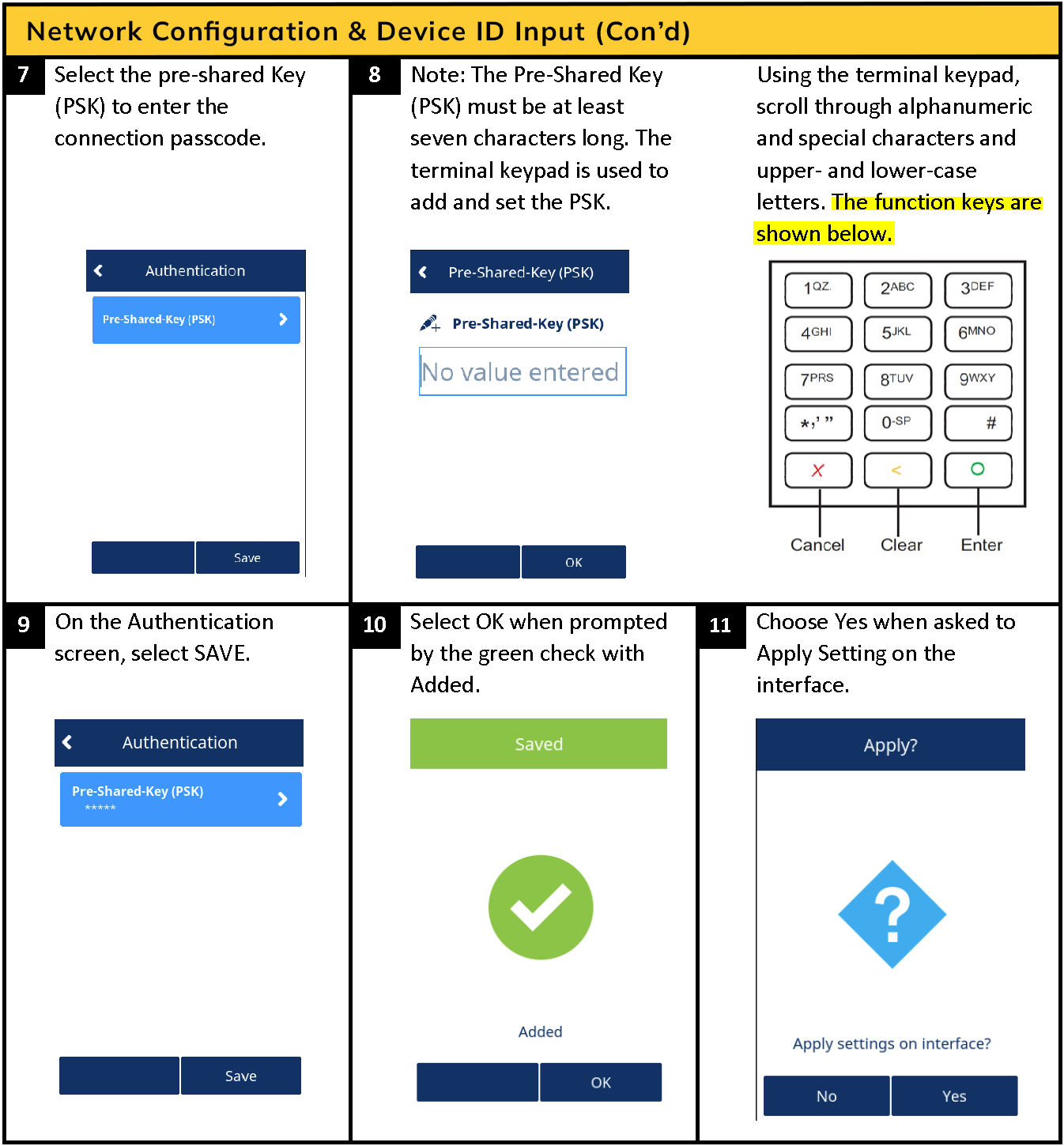
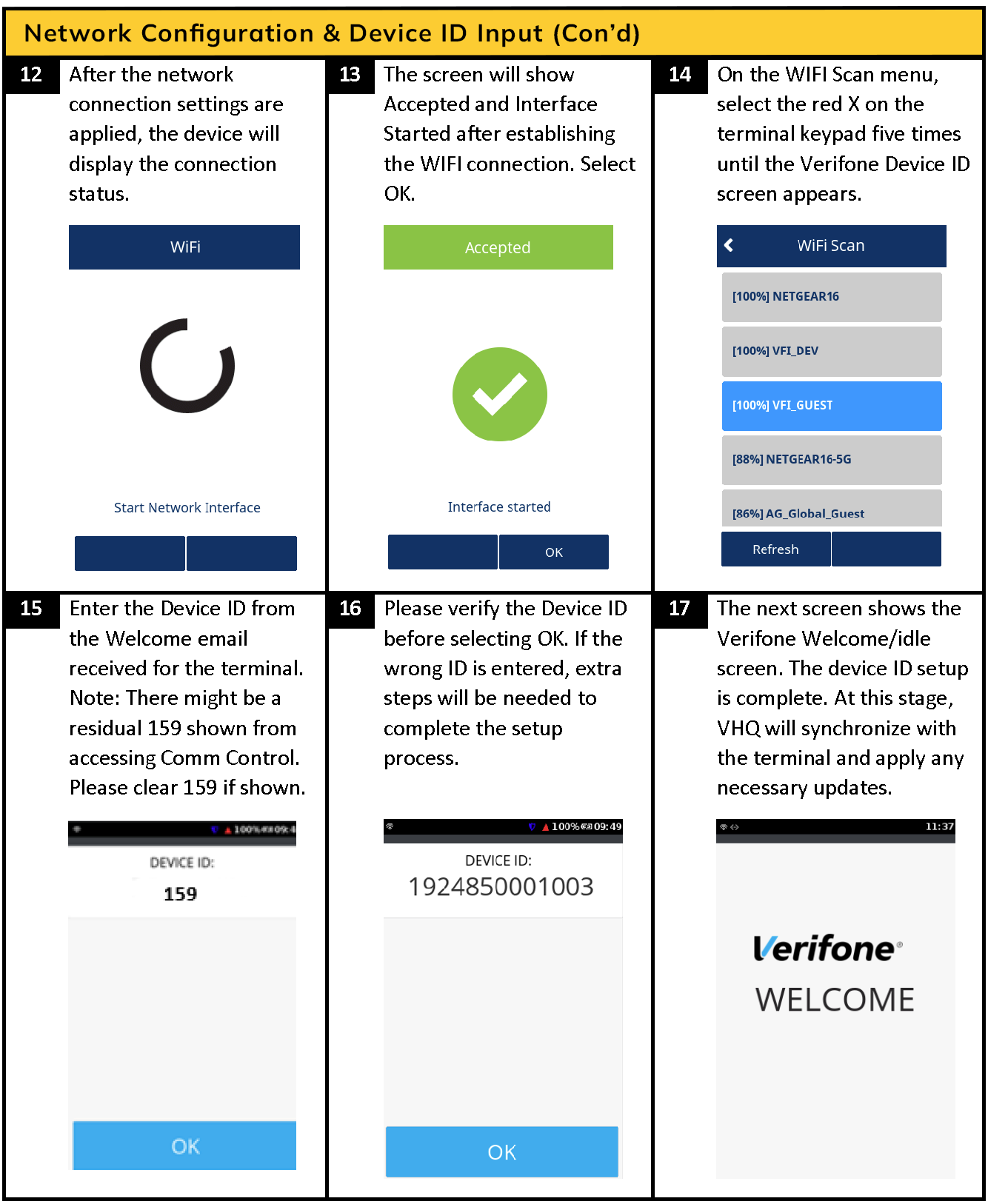
When you receive your terminal order you will need to connect the device(s) to Wifi and then enter the device ID (DID).
You can find the 8 digit device ID(s) in the Welcome Email from Verifone and on the "Terminals" list in the JustiFi dashboard.
To view the "Terminals" list go to https://app.justifi.ai/ and choose “Terminals” from the "Payments" dropdown.
Filter the list by sub account. Choose a device ID from the list of terminals that match the "Model Name" you want to configure
and have no assigned "Serial Number". The "Serial Number" will be assigned to the device after configuration is finished.
Follow these steps to configure your device(s):
The same steps are listed in the following images
After Configuration
You should be able to see any configured terminals in the response of the List Terminals API response
and in the "Terminals List" on the JustiFi dashboard:
Go to https://app.justifi.ai/ and choose “Terminals” from the "Payments" dropdown.
Confirm that the device you just configured has an assigned "Serial Number" that matches the serial number on the back of your device.
Check Terminal Status
To double check that a terminal is in CONNECTED mode call the Get Terminal Status API and pass the terminal ID.
Or go to https://app.justifi.ai/ and choose “Terminals” from the "Payments" dropdown. On the "Terminals" list click into a terminal you want to check.
On the detail view of a terminal click the "Check Terminal Status" button and the latest status will be retrieved.
Identify Terminal
To ping a terminal device and display the nickname or serial number for 20 seconds on its display you can send a request to the Identify Terminal API. Or go to https://app.justifi.ai/ and choose “Terminals” from the "Payments" dropdown. On the "Terminals" list click into a terminal you want to ping. On the detail view of a terminal click "Identify Terminal".
Reset a Terminal
A terminal is in ACTIVE mode when it is processing a payment. It can occasionally get unresponsive.
In this case you can reset it by holding down the red "X". Once reset the device will usually be in CONNECTED mode.
Once your device is configured and you have confirmed it is in CONNECTED mode you can attempt a payment.
FAQ
How long will the Device ID screen wait before timeout?
The Device ID timeout does not take effect when entering the Device ID. The DID will remain until the
form is completed, even after rebooting.
What if I power down the device before entering DID?
The terminal will return the device ID screen until the user enters the device ID.
What if I do not enter DID and press OK?
After pressing "OK", the terminal will return to the Welcome screen. On the next reboot, it will display
the device ID entry screen.
How long does it take to complete the software installation after entering the device ID?
After the update job is scheduled by Verifone, it will take 15 to 20 minutes to complete. The download and
update usually are complete within 20 to 30 seconds.
What if power is lost during the software installation process?
The device will recover from the reboot and continue the software installation process.
Are hidden WIFI networks supported?
At this time, hidden networks will require engineering assistance.
What if my device's battery charge level is low before I enter the DID?
Please be sure the battery level is above 50% before entering DID. The device will postpone updates if
the battery is lower than 20%. It is best practice to attach the terminal to the AC power adapter during
the VHQ DID software update process.
What if I cannot find the Welcome email for the terminal?
If your package was sent from Verifone, check the packaging list affixed to the terminal's box.
The 8 digit DID is listed under “Reference” on the bottom of the packaging list.
If you can't find either or your package was not sent from Verifone please contact JustiFi Customer Success.